


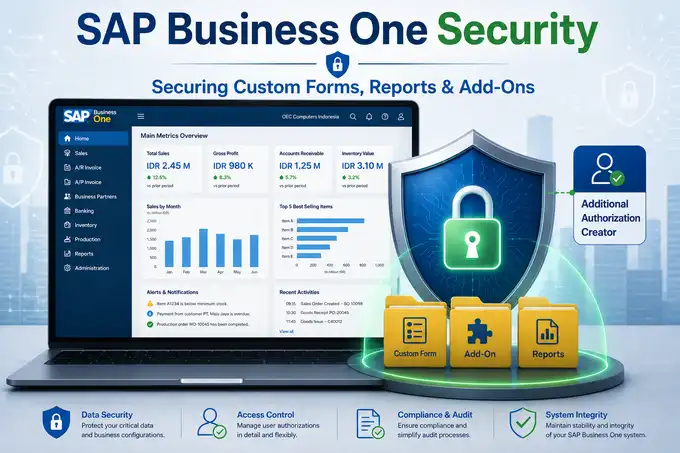
Many organizations have implemented add-ons, custom forms, or custom reports within SAP Business One; however, not every user should be granted access to these functionalities. Without a properly configured authorization framework, the risks of uncontrolled data modifications, exposure of sensitive information, and weakened audit trails can increase substantially.
As a business expands, its organizational structure demands access controls that are far more granular than the standard permissions provided by the system out of the box.
Additional Authorization Creator is a native SAP Business One feature designed to introduce custom authorizations into the General Authorizations menu. It enables system administrators to govern access rights to custom forms, add-ons, stored procedure reports, and User-Defined Windows (UDWs) with precision, whether by individual user or user group.
What Is Additional Authorization Creator in SAP Business One?
Out of the box, SAP Business One provides the General Authorizations menu, allowing administrators to manage access rights for standard modules and forms, including Sales Orders, A/P Invoices, and Journal Entries.
However, once your system is extended through the SDK (Software Development Kit), UI API, DI API, or enhanced with User-Defined Objects (UDOs), these newly created components will not automatically appear within the General Authorizations window.
This is where Additional Authorization Creator becomes indispensable. The feature serves as a bridge that registers the unique identifiers of custom-built forms, third-party add-on menus, and custom reports within the standard General Authorizations hierarchy.
By leveraging this functionality, administrators can apply SAP Business One’s three standard authorization levels to custom objects:
- Full Authorization: Users are granted unrestricted access to open, view, create, and modify data.
- Read Only: Users may view information but are prevented from making changes or performing further interactions.
- No Authorization: The menu or form is completely restricted. In certain scenarios, the custom menu may not even appear in the user’s Main Menu.
Why Is Additional Authorization Necessary?
Overlooking security controls for custom components is one of the most significant vulnerabilities in ERP governance. Allowing all users unrestricted access to add-ons or internal reports exposes the organization to a range of operational and financial risks.
To better understand the importance of this feature, consider the following risk-and-control matrix:
| KEY CHALLENGE | BUSINESS IMPACT | SOLUTION WITH ADDITIONAL AUTHORIZATION |
|---|---|---|
| All users share identical access rights to custom menus. | Potential exposure of sensitive information, such as profit-margin reports or production costing data. | Restrict access to custom reports exclusively to management personnel or designated users. |
| Absence of Segregation of Duties (SoD). | Warehouse personnel may gain the ability to alter approval parameters or pricing validations within sales add-ons. | Separate permissions for custom data entry from add-on configuration privileges. |
| Elevated risk of human error. | Data stored in User-Defined Tables (UDTs) may be inadvertently modified or deleted by non-technical users. | Assign Read Only or No Authorization permissions to operational users where appropriate. |
| Weak internal audit trails. | Difficulty identifying who executed custom utility functions or data-cleansing tools. | Ensure that every custom-function activity is tied to a formally authorized User ID. |
How Does Additional Authorization Creator Work?
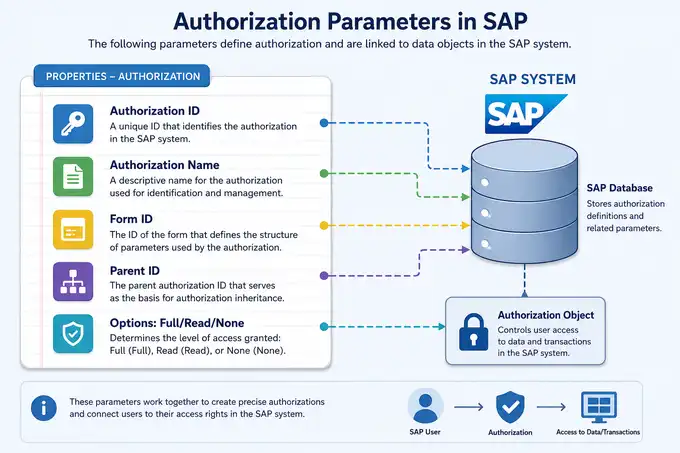
Before moving into the technical implementation, it is essential to understand the key parameters that define the structure of an Additional Authorization. Each authorization entity is composed of the following elements:
- Authorization ID: A unique alphanumeric code that serves as the primary authorization identifier within the database. It is highly recommended to adopt a dedicated company or add-on prefix (for example: A_PUR_RPT01).
- Authorization Name: The descriptive label displayed within the General Authorizations hierarchy (for example: Advanced Purchase Analysis Report).
- Form ID: The unique string or numeric identifier of the form being controlled. For add-ons, this typically refers to the FormUID declared within the UI API code. For reports, it may correspond to a Query Wizard object or a specific window ID.
- Parent ID: Determines where the custom authorization will be positioned within the General Authorizations hierarchy beneath the standard menu structure.
- Level: Defines the hierarchy depth, such as Level 1 for primary groups and Level 2 for subordinate menu items.
- Display Order: Specifies the vertical display sequence relative to other custom authorization items within the same hierarchy level.
- Authorization Type: Determines the available permission options for the object, whether it supports Full / Read / None or only Full / None authorization models.
Once an Additional Authorization is successfully created, it becomes fully integrated with the standard User Authorization and User Group Authorization framework. As a result, organizations that already employ user-group-based permission management can administer access rights efficiently without configuring permissions individually for every user.
How to Configure Additional Authorization in SAP Business One
Follow the structured steps below to safely create and implement additional authorizations within your SAP Business One environment.
Step 1: Access the Additional Authorization Creator
Launch SAP Business One using an account with Superuser privileges. Navigate to:
Administration > System Initialization > Authorizations > Additional Authorization Creator.
The Additional Authorization Creator window will open, displaying the authorization hierarchy currently configured within the system.
Step 2: Define the Hierarchical Position (Parent Level)
Before creating a new authorization item, determine where it should reside within the hierarchy. For example, if you want to place it under the standard Purchasing module:
- Select the relevant module area or folder in the left-hand panel.
- Use Add Same Level to create a new primary category, or Add Sub Level to place the authorization within an existing module subfolder.
Step 3: Define the Authorization ID and Name
In the active right-hand panel, complete the primary identification fields:
- In the Authorization ID field, enter a unique string without spaces.
- In the Authorization Name field, provide a clear and meaningful description that can be easily understood by users and auditors alike.
Step 4: Specify the Correct Form ID
This is the most critical step. Enter the appropriate Form ID corresponding to your custom object. If you are securing a User-Defined Window or an add-on form, ensure that the FormUID value entered matches exactly—character for character and case-sensitive—the identifier registered within the system.
Step 5: Configure Display Order and Authorization Options
Assign a Display Order value (for example: 1, 2, or 3) to maintain a well-organized hierarchy. Under Options, determine whether the custom form should support a Read Only permission level or only the binary Full/None authorization model.
Step 6: Save the Authorization Configuration
Once all parameters have been completed accurately, click Update or Add at the bottom of the window to save the configuration to the SAP Business One database.
Step 7: Assign the Authorization to Users or User Groups
Your newly created authorization is now ready for deployment. To assign it:
- Navigate to Administration > System Initialization > Authorizations > General Authorizations.
- Select the target User or User Group from the left-hand panel.
- Locate the custom Authorization Name you have just created. It is typically found beneath the selected parent module or within a dedicated User Authorizations folder.
- Set the authorization level to Full Authorization, Read Only, or No Authorization according to the user’s operational responsibilities and access requirements.
- Click Update to apply the new security controls.
Understanding the Authorization Hierarchy Structure
Managing dozens of custom forms without a well-defined structure can significantly complicate security audits and permission administration. The Additional Authorization Creator adopts a highly flexible Parent–Child Authorization model to address this challenge.
[Main Module: Purchasing - Custom]   <-- Parent Level (Level 1)
   |
   +-- [Vendor Evaluation Report]    <-- Child Level (Level 2)
   |
   +-- [Special Approval Form]       <-- Child Level (Level 2)
To efficiently manage this hierarchy, utilize the three primary functions available within the creator menu:
- Add Sub Level: Creates a child branch beneath the currently selected authorization item. This function is particularly useful for grouping multiple custom reports under a single parent folder.
- Add Same Level: Creates a new authorization item at the same hierarchical level as the selected item.
- Delete Authorization: Removes a custom authorization entry from the system. It is important to note that deleting an Authorization ID does not remove the associated form or add-on from the database; it merely removes the access-control mechanism from the General Authorizations menu.
Implementation Examples for Add-Ons and Custom Forms
Consider the following real-world scenarios in which Additional Authorization was implemented within a mid-sized Indonesian enterprise to strengthen internal controls.
Case 1: Custom Purchasing Report (Stored Procedure / Crystal Reports)
The company manufactures products using proprietary formulas and maintains a custom report called Primary Raw Material Pricing Report.
- Before Implementation: The report was accessible through a general menu, allowing all purchasing administrators to view confidential raw material pricing fluctuations, thereby increasing the risk of information leakage to competitors.
- After Implementation: A dedicated Authorization ID was created for the report. Access was set to No Authorization for all staff members, while Full Authorization was granted exclusively to the Purchasing Manager.
Case 2: Custom Approval Form (Logistics Add-On)
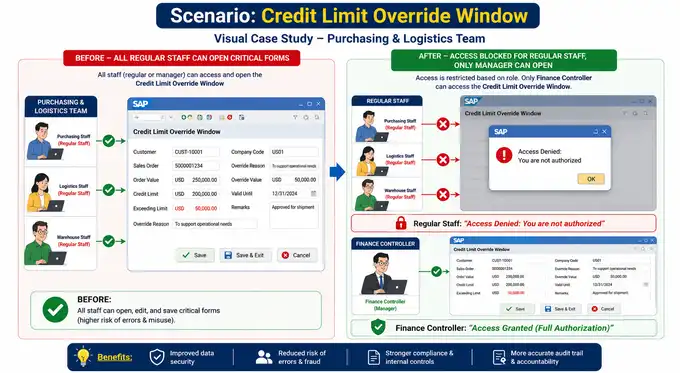
The organization utilizes a third-party add-on that allows users to override customer credit limits through a Credit Limit Override Window.
- Before Implementation: Anyone familiar with the shortcut code or add-on menu could access the form and unlawfully increase customer credit limits.
- After Implementation: The window’s Form ID was registered within the Additional Authorization Creator. Access was completely restricted for operational sales personnel and granted solely to the Finance Controller team with Full Authorization privileges.
Authorization Configuration Best Practices
As a consultant, I strongly recommend adhering to the following governance principles to ensure that your ERP environment remains secure, scalable, and audit-ready.
1. Enforce the Principle of Least Privilege
Always grant users only the minimum level of access required to perform their daily responsibilities. Begin with No Authorization by default and elevate permissions only when a formally approved business request has been submitted.
2. Leverage User Groups
Avoid managing custom permissions on an individual-user basis if your organization has more than 20 employees. Instead, group users according to functional roles (for example, Finance & Logistics Group or Sales Administration Group) and assign Additional Authorizations at the group level for greater administrative efficiency.
For guidance on managing main menu visibility in alignment with these authorization settings, refer to the Form Authorization & Main Menu Settings Guide in SAP Business One.
3. Document Every Authorization ID
Maintain a master spreadsheet that records every Authorization ID, Form ID, object name, business purpose, and the designated Business Process Owner responsible for each custom object.
4. Conduct Regular Access Reviews
Perform authorization audits at least every six months. Ensure that employees who have transferred roles or left the organization have their custom permissions revoked promptly, and verify that organizational changes have not inadvertently created unauthorized access pathways.
Impact on Security and Audit Trail
The disciplined implementation of Additional Authorization has a direct impact on an organization’s compliance with financial auditing standards. When external auditors assess an enterprise’s information systems, one of their primary areas of focus is the enforcement of Segregation of Duties (SoD) within the ERP environment.
By securing custom forms, organizations effectively eliminate potential backdoor avenues for unauthorized data manipulation. Whenever a user attempts to access a custom form for which they lack authorization, SAP Business One automatically denies access and displays the standard system message: “You are not authorized to perform this action”.
Furthermore, custom form security should always be complemented by rigorous activity log monitoring. To comprehensively track data modifications across both standard and custom documents, you may refer to the SAP B1 Access & Change Log for User Activity Monitoring guide.
This layered approach to governance ensures that every critical data interaction leaves behind a valid and auditable digital footprint.
FAQ (Frequently Asked Questions)
What Is Additional Authorization Creator?
It is a built-in SAP Business One utility that enables administrators to register custom objects—such as custom forms, add-ons, and newly created data windows—within the standard General Authorizations framework, allowing their access rights to be centrally managed and controlled.
What Is the Difference Between General Authorization and Additional Authorization?
- General Authorization refers to the standard, out-of-the-box permission structure provided by SAP Business One for its native modules and functionalities.
- Additional Authorization is an administrator- or consultant-configured authorization layer designed to manage access rights for custom forms, add-ons, and functions that extend beyond SAP’s standard capabilities.
How Can I Identify a Form ID in SAP Business One?
Enable the System Information feature by navigating to View > System Information. Once activated, move your mouse cursor over the custom form or window you wish to identify. The lower-left corner of the SAP Business One application window will display technical information containing values such as Form=XXX or FormID=XXX.
Can Authorization Be Applied to Add-Ons?
Yes. In fact, this is one of the primary functions of the Additional Authorization Creator. Simply obtain the unique FormUID string or Menu ID from the developer responsible for the add-on and register it within the authorization hierarchy.
Can Authorization Be Assigned to User Groups?
Absolutely. Once a new authorization has been created through the Additional Authorization Creator, it immediately becomes available within the General Authorizations window. From there, you can select the User Groups tab and apply the custom authorization to all members of the group simultaneously.
Are Authorization Changes Recorded in the Audit Trail?
Yes. Whenever a Superuser modifies a user’s authorization level—for example, changing a permission from Read Only to Full Authorization within the General Authorizations window—the action is recorded by SAP Business One’s internal logging system for security auditing and compliance purposes.
Conclusion
The Additional Authorization Creator feature in SAP Business One is an indispensable instrument for organizations seeking to establish a secure, well-governed, and compliant ERP environment.
Its ability to provide granular control over access to custom forms, add-ons, and internal reports significantly reduces the risk of sensitive data exposure while minimizing operational errors caused by human oversight.
To maximize its effectiveness, implement this feature in accordance with the principle of least privilege and maintain comprehensive documentation for every custom authorization ID you create. Doing so will greatly simplify future audit processes and strengthen your organization’s overall security posture.
Looking to enhance SAP Business One security and access control within your organization? Explore our additional SAP Business One resources or discuss your implementation requirements with an experienced team of consultants.